Microsoft Tenant Integration via Service Account
This guide articulates the technical prerequisites to set up an integration between Zenity and Power Platform using a Service Account for authentication.
This authentication type is based on user-delegated access which requires creating both an application and a dedicated user account.
Goals:
- Create and set up an application that would allow Zenity to authenticate and act on-behalf-of the dedicated user account. The application will only be used to authenticate the aforementioned user.
- Create a dedicated user account that will be used by Zenity for data collection.
In this document, you will find both a quick guide and a step-by-step guide.
Quick guide
A short summary of the steps required to set up your integration.
Step 1: Create an Azure AD application
- Create a single-tenant Azure AD application
- Enable Allow public client flows under Authentication
- Enable the following delegated permissions under API permissions
- Flow: Activity.Read.All, Flows.Read.All, User
- Microsoft Graph: User.Read, User.Read.All, Group.Read.All, ExternalConnection.Read.All, TeamsAppInstallation.ReadForUser.All
- Dynamics CRM: user_impersonation
- PowerApps Service: User
- PowerBI Service: Tenant.Read.All
- Grant admin consent for your organization
Step 2: Create a dedicated user account
- Create a dedicated user account
- Set up a long and complex password, ideally one that is randomly generated
- Make sure the password has no expiry date
- Make sure the user does not have MFA on, as it would prevent application authentication
- Make sure the user can log in to Azure AD from IP addresses 18.200.62.37 , 52.31.196.233, 108.128.206.229 , 99.81.56.225 used by Zenity services (consider Conditional Access policies)
- Grant the Power platform administrator or Power BI Administrator (If you have been granted restricted access to certain environments only) permission under Assigned roles
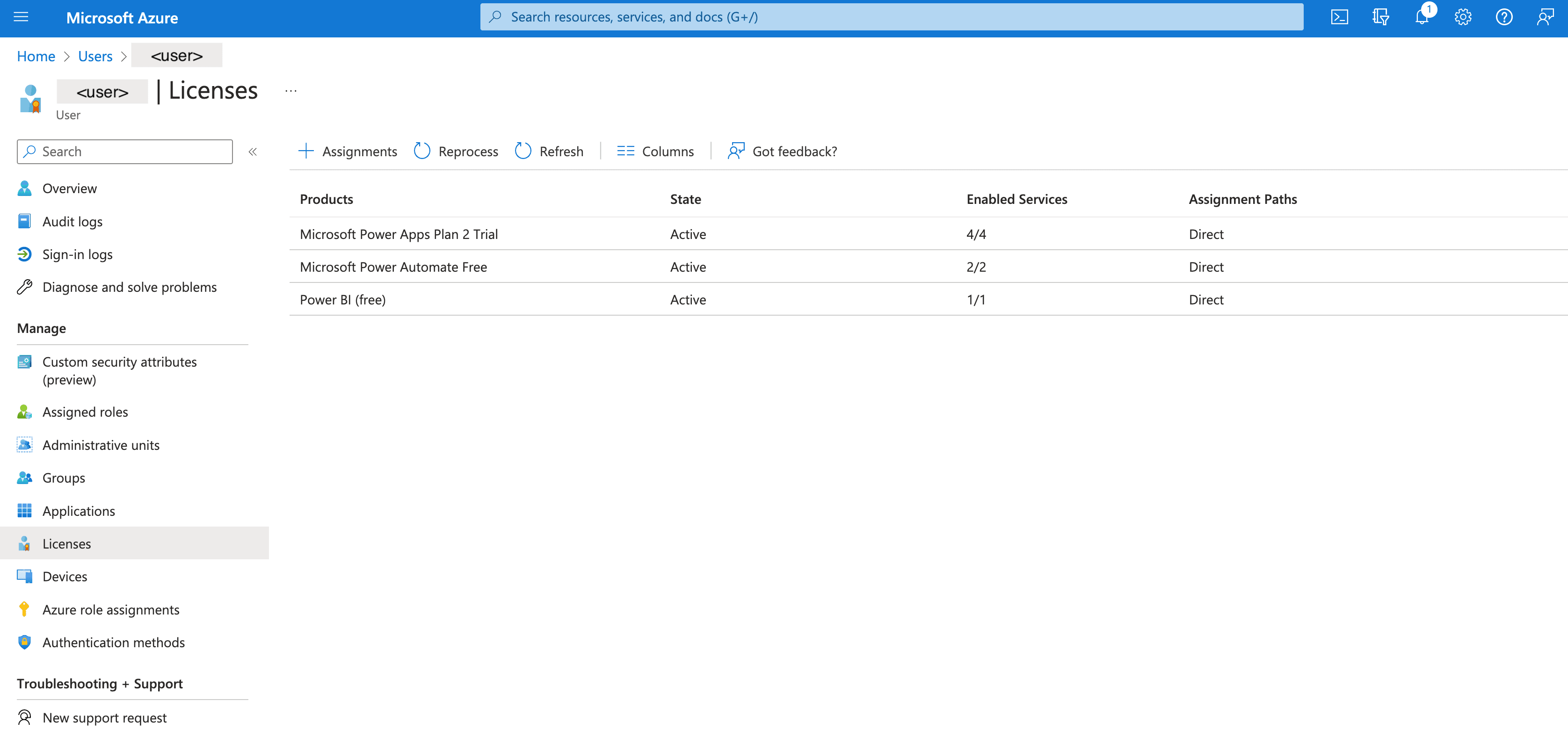
- Assign a Power Apps, Power Automate and Power BI license under Licenses. Any license for each of these services will do including the free ones.
Step-by-step guide
Detailed instructions on how to set up your integration.
Step 1: Create an Azure AD application
Open Azure AD portal
-
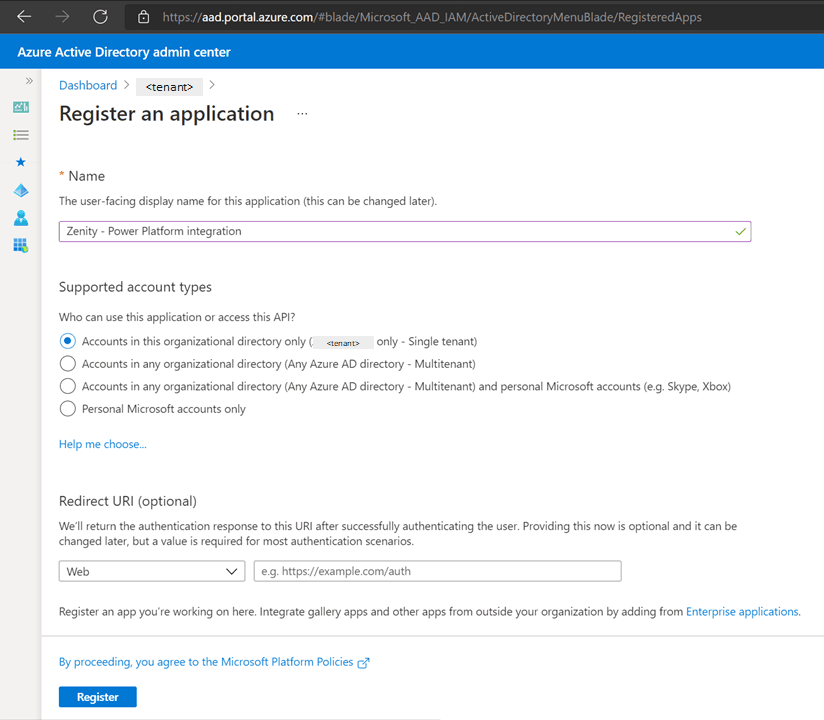
Create an Azure AD application
- Select App registration
- Click New registration
- Select a display name
- Under Supported account types choose Accounts in this organizational directory only (<tenant> only - Single tenant)
- Click Register to complete
-
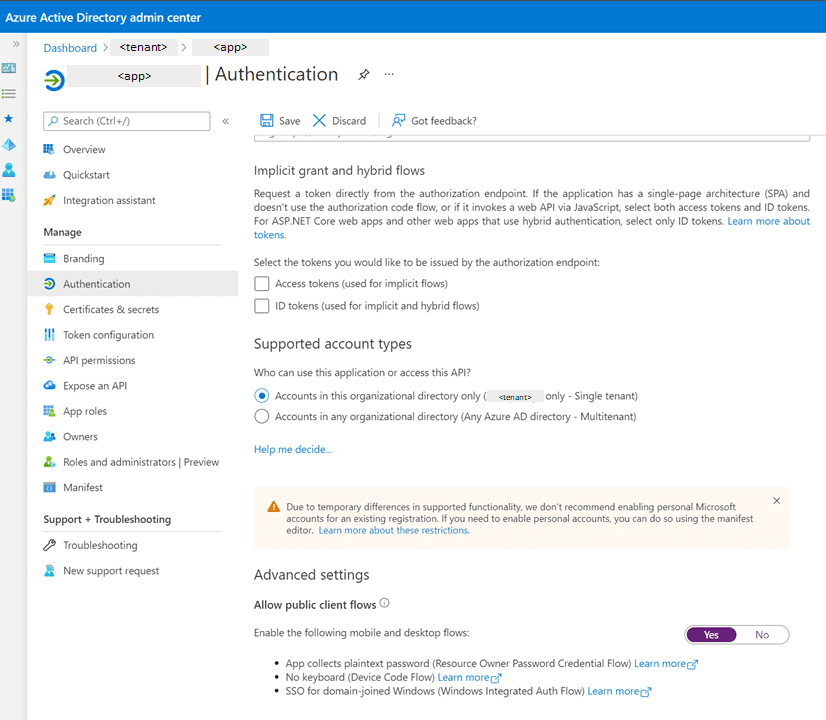
Set up authentication
- Open the application page in Azure AD
- Select Authentication
- Under Advanced settings, make sure Allow public client flows is set to
Yes - Click Save to complete
-
Set up permissions
- Open the application page in Azure AD
- Select API permissions
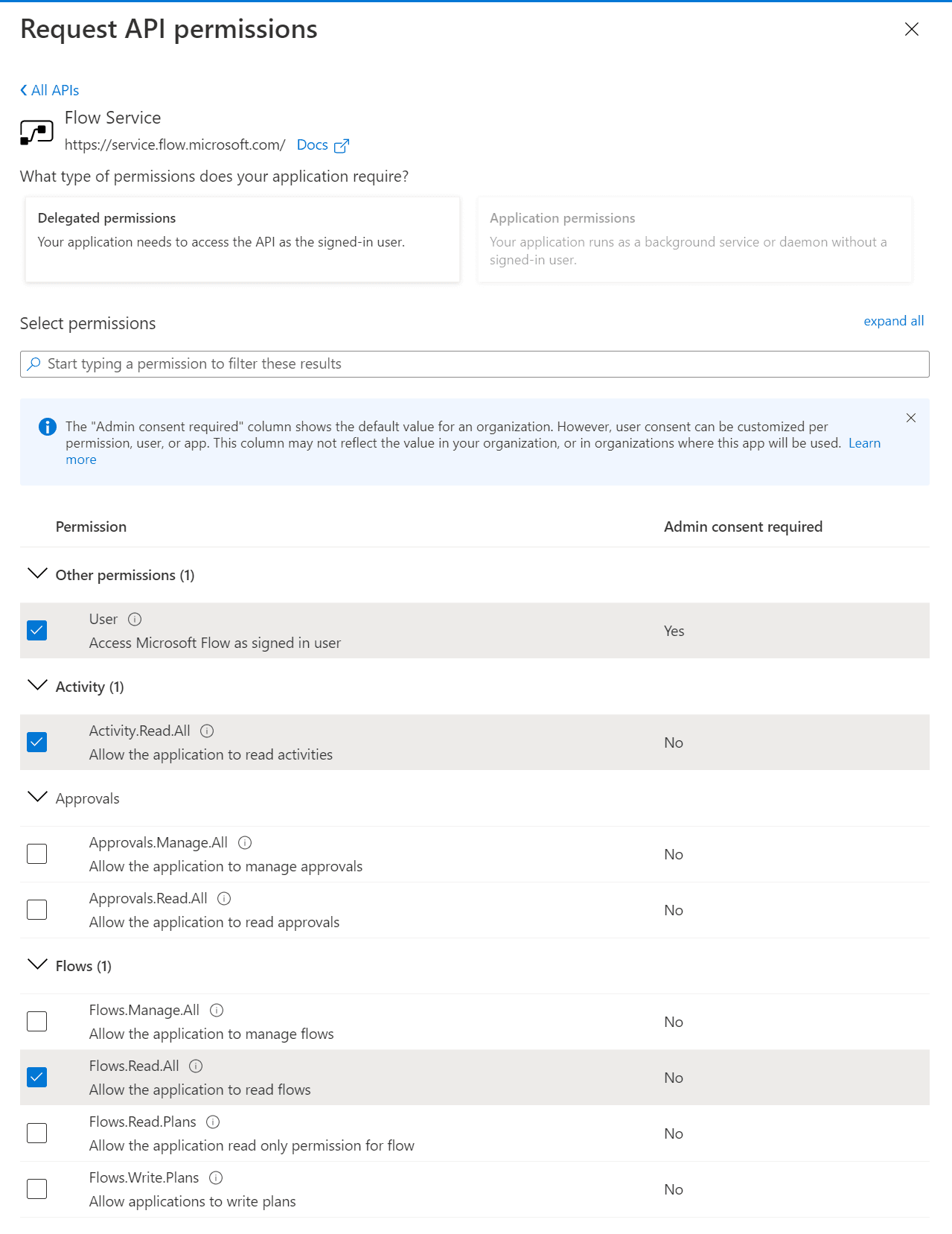
- Click Add a permission and enable the following permissions:
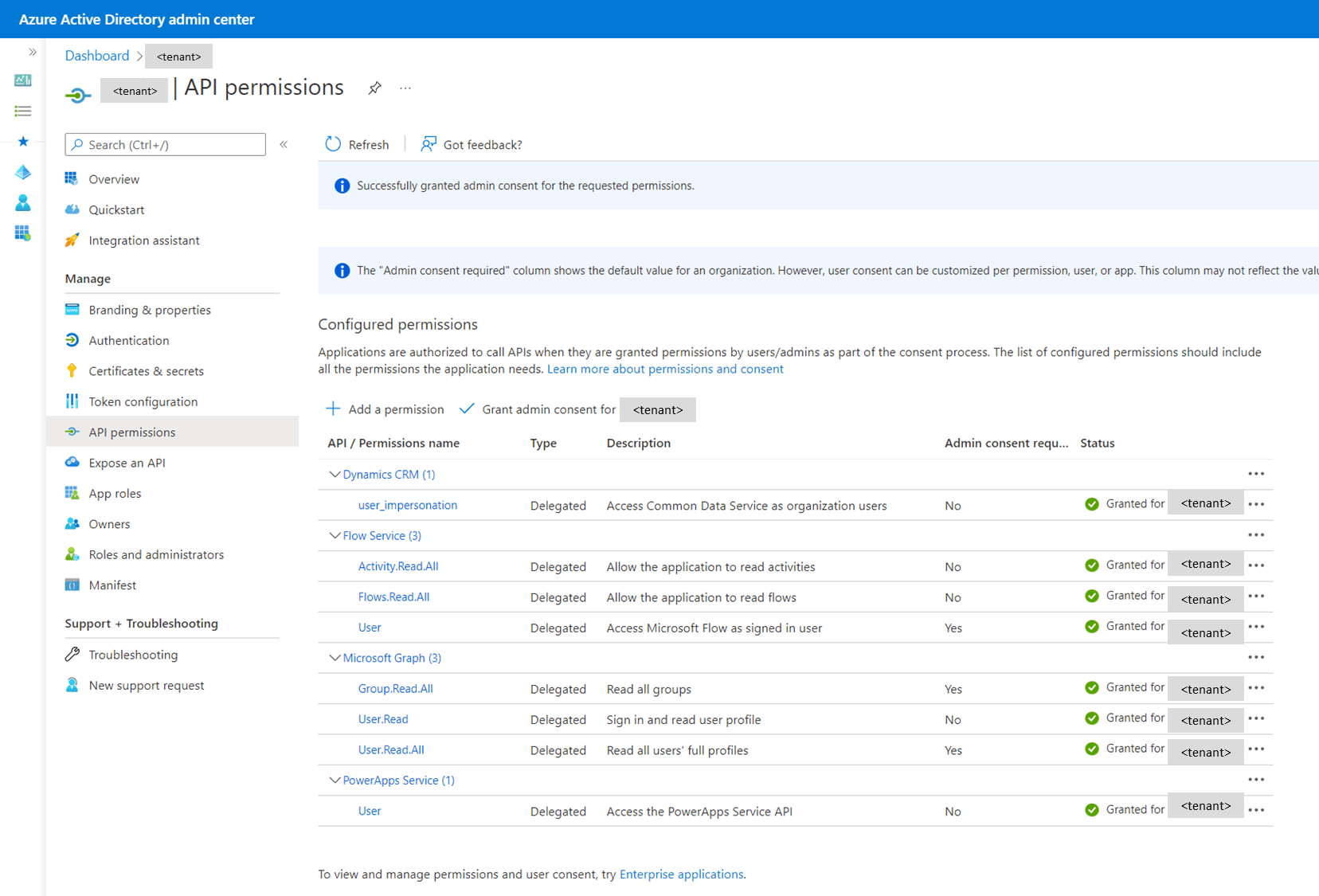
- Under Flow Service, Delegated permissions, choose Activity.Read.All, Flows.Read.All, and User
- Under Microsoft Graph, Delegated permissions, choose User.Read, User.Read.All, Group.Read.All
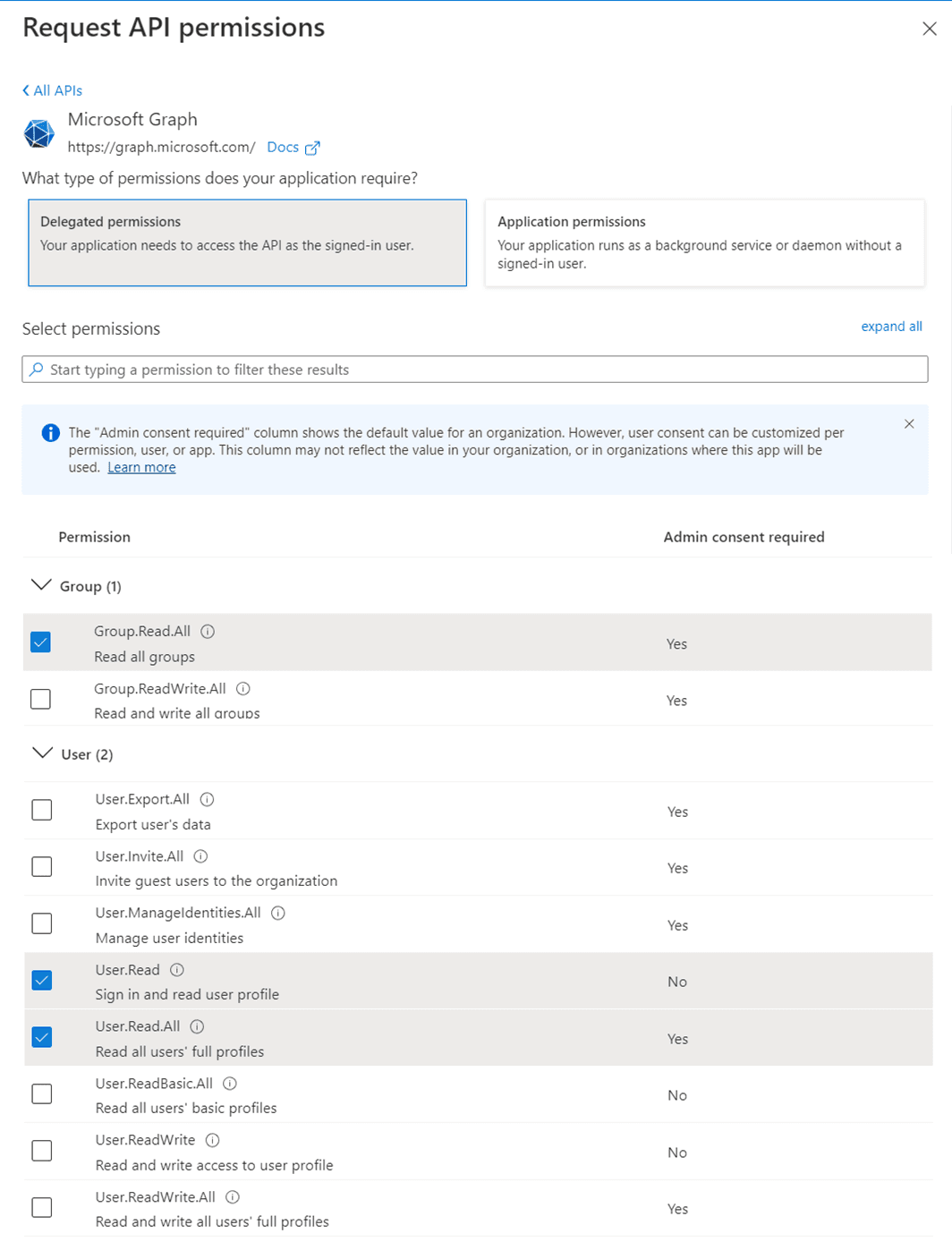
- Under Dynamics CRM, Delegated permissions, choose user_impersonation
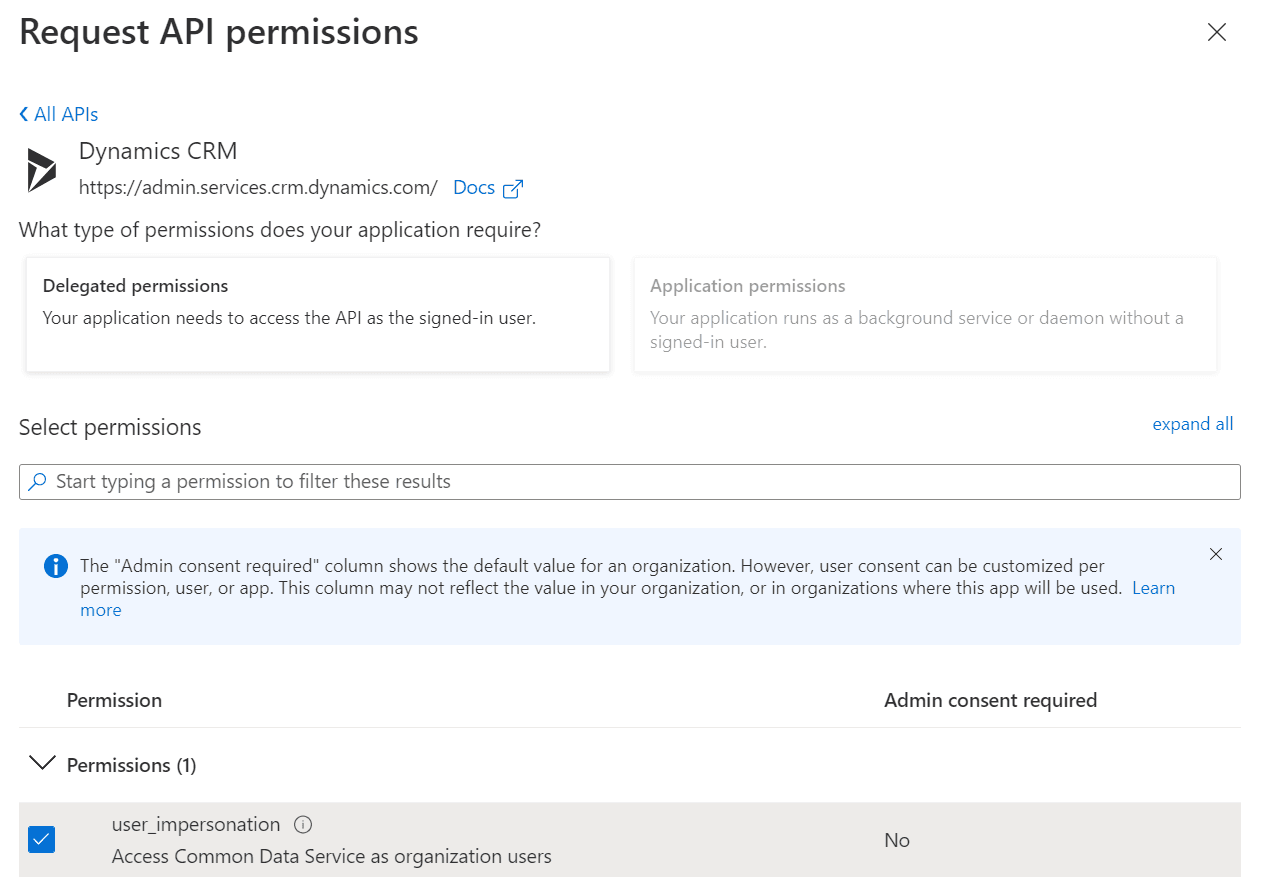
- Locate PowerApps Service under APIs my organization uses. Note, this is a different API than the”PowerApps Runtime Service”_, which we do not require access to.
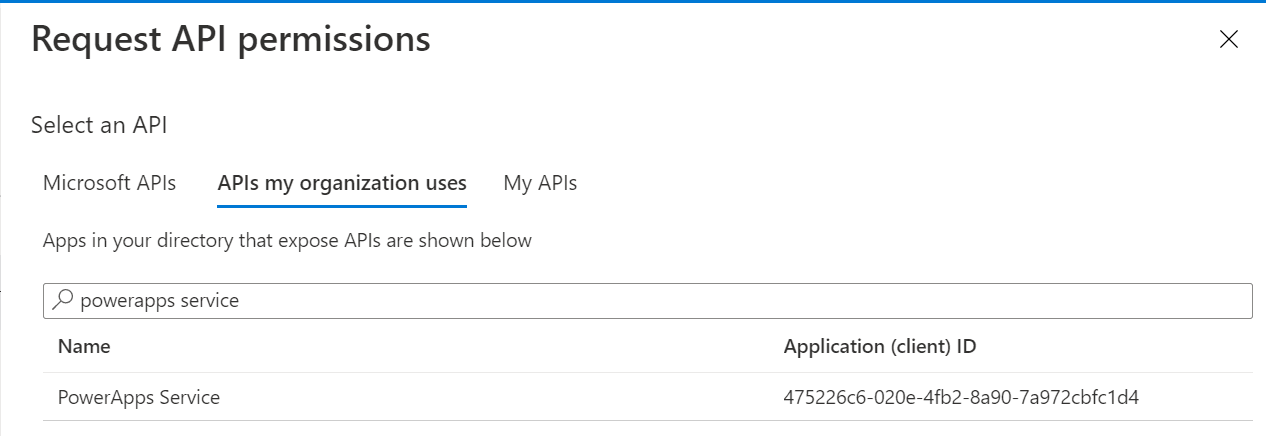
- Under Delegated permissions, choose User.
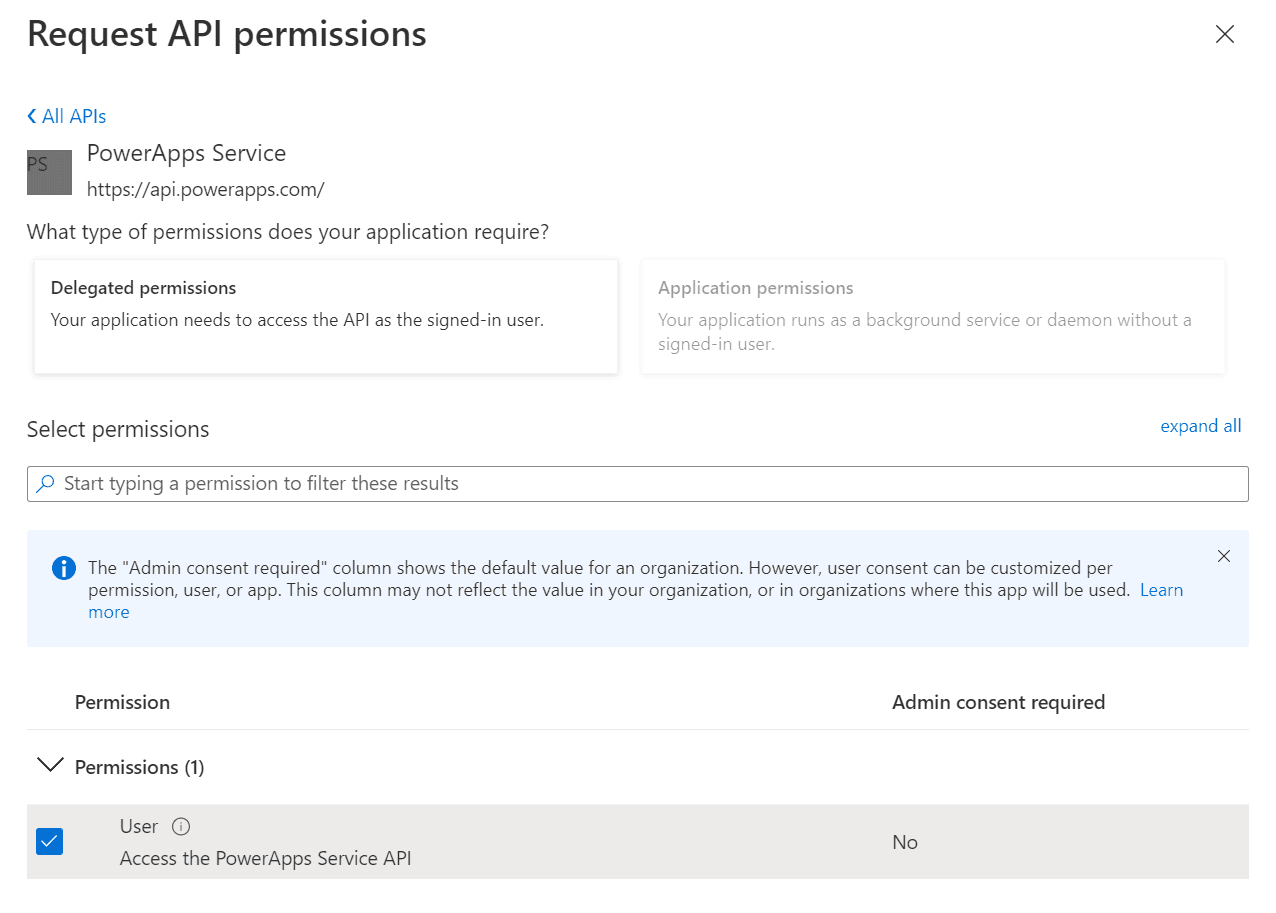
-
Under API permissions, Verify that the assigned permission are similar to those on the image below, and click Grant admin consent for <tenant>
Step 2: Create a dedicated user account
Open Azure AD portal
-
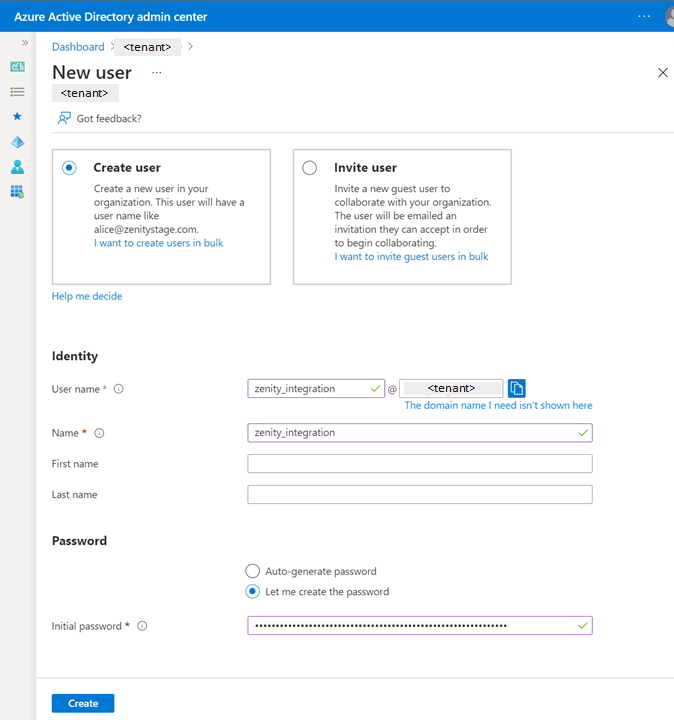
Create a new user account
- Set up a long and complex password, ideally one that is randomly generated
- Make sure the user does not have MFA on, as it would prevent application authentication
- Make sure the user can log in to Azure AD from IP addresses 18.200.62.37 and 52.31.196.233, used by Zenity services (consider Conditional Access policies)
-
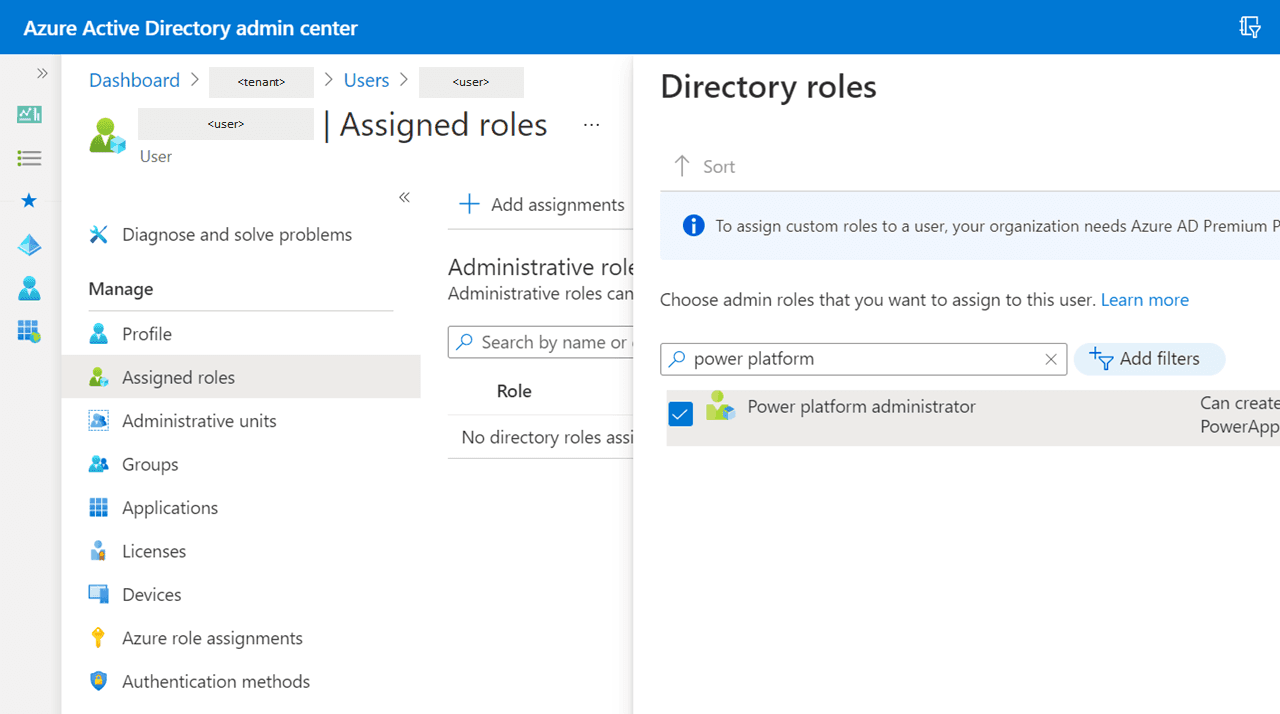
Grant the Power platform administrator permission under Assigned roles
-
Assign a Power Apps, Power Automate and Power BI license under Licenses. Any license for each of these services will do including the free ones.