Zenity Issues
Overview
Zenity Issues transform fragmented alerts into correlated, high-confidence security risks. Instead of reviewing isolated posture findings or runtime alerts, Issues provide a complete security story combining configuration risks, runtime behavior, and resource relationships into a single, actionable view.
Issues are designed for security practitioners who need to quickly understand what happened, why it matters, and what to do next.
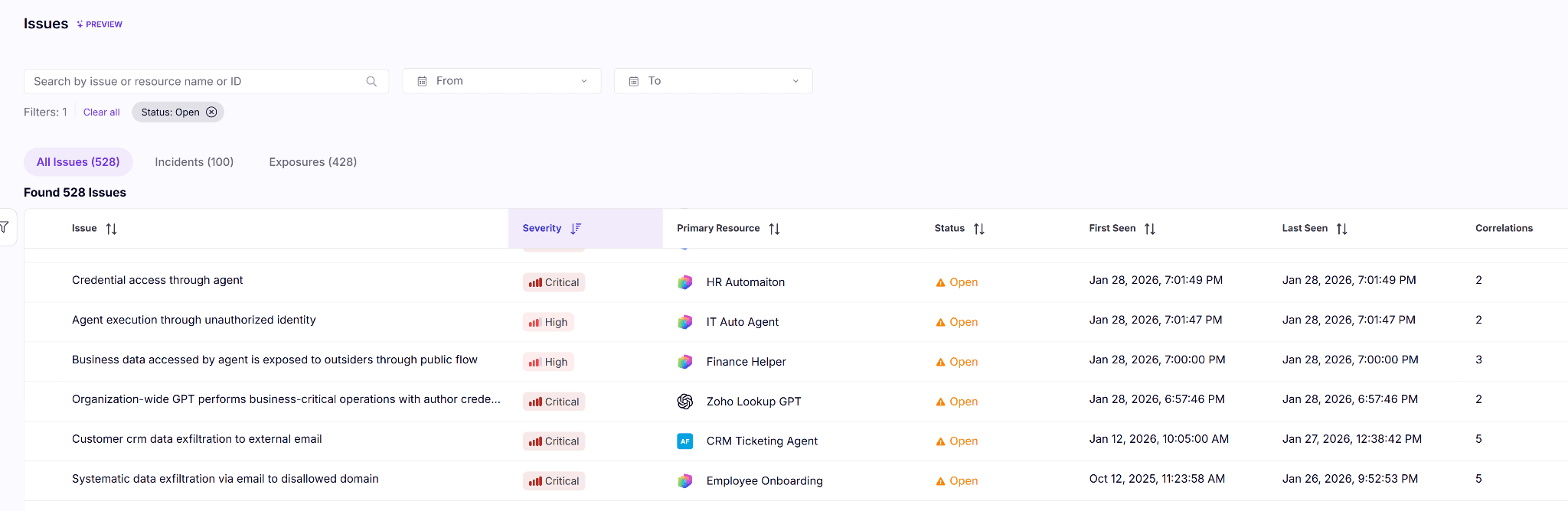
Issues list view with detected issues sorted by severity and filtered by Open Issues
What Is an Issue?
An Issue is a risk in your environment that requires attention. It may represent multiple correlated signals surfaced as a threat detection incident, or an exposure issue that reveals an attack-chain risk in your organization.
Each Issue is a self-contained investigation package that includes:
- A clear summary of what happened
- Root cause analysis with supporting evidence
- A timeline of build-time and runtime events
- A visual attack path graph
- Severity and risk signal evidence from posture violations and runtime findings
- Lifecycle management so users can open, resolve, and reopen issues
Why Issues Matter
Traditional security tools generate alerts. Issues provide answers.
With Zenity Issues, your team can:
- Reduce alert fatigue by grouping related findings into a single story
- Focus on high-confidence, high-impact risks rather than chasing individual signals
- Understand how risks evolve across build time and runtime
- Investigate faster with pre-analyzed context and assembled evidence
Navigating the Issues Page
The Issues page lists all detected issues in your environment. It is accessible from the left navigation bar under Issues.
Default View
By default, the table displays all Open issues sorted by severity. Each row shows the issue name, severity badge, primary resource, status, first seen and last seen timestamps, the number of correlated findings, and relevant labels such as Build Time and Run Time.
Filters and Search
You can narrow the list using the toolbar at the top of the page:
- Search by issue name, resource name, or issue ID
- Filter by:
- Date range using the From and To date pickers
- AI Service
- Analysis Type for customers using the Correlation AI Agent
- Severity
- Status
- Integration
- Labels
- Sort any column by clicking its header
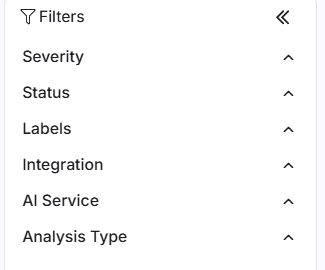
Issues filter panel
Issue Anatomy
Clicking any row in the Issues list opens the issue detail panel. The panel is organized into several distinct sections.
Issue Summary
At the top of the panel, Zenity shows the issue name, an AI Generated badge where applicable, and key metadata including the issue ID, First Seen, and Last Seen timestamps. This provides immediate context on the scope and age of the risk.
Issue Analysis
The Issue Analysis section provides a plain-language narrative describing the full attack or exposure scenario: what happened, who was involved, which resources were affected, and what data or operations were at risk.
To the right of the analysis, Zenity displays:
- Status showing the current lifecycle state and the reason the issue was opened
- Severity showing the current risk level
- Primary Resource linking to the AI agent or resource at the center of the issue
- AI Service identifying the underlying platform such as Copilot Studio or ChatGPT Enterprise
Where relevant, the panel also shows the Actor section with the display name and email of the user associated with the issue.
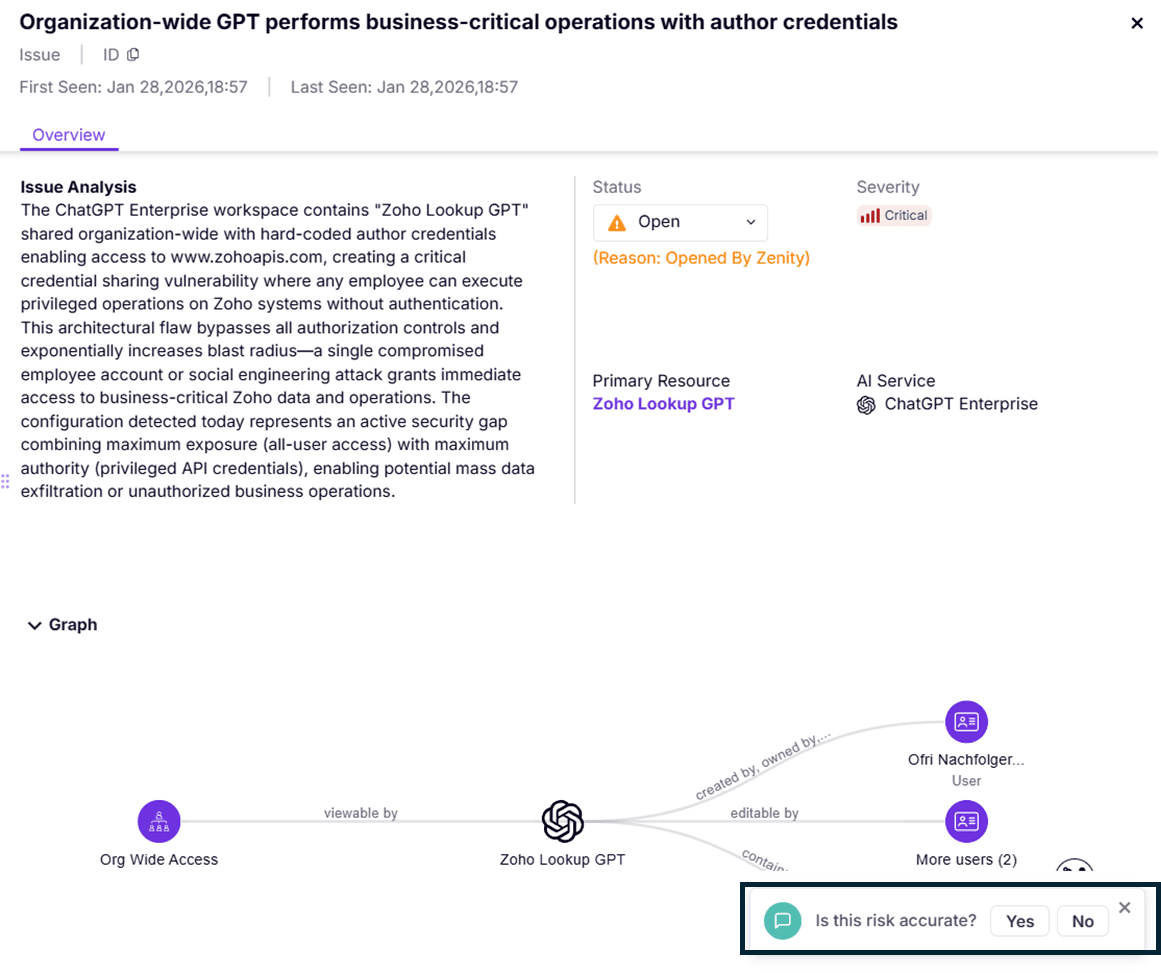
Issue detail overview showing Issue Analysis, status, severity, and graph context
Attack Path Graph
The Graph section visualizes the relationships between the entities involved in the issue, including AI agents, users, connectors, data sources, and external endpoints. Edges show the nature of each relationship, such as owned by, used by, viewable by, editable by, or contains.
The graph helps investigators understand blast radius and identify which identities or systems could be leveraged in an attack chain.
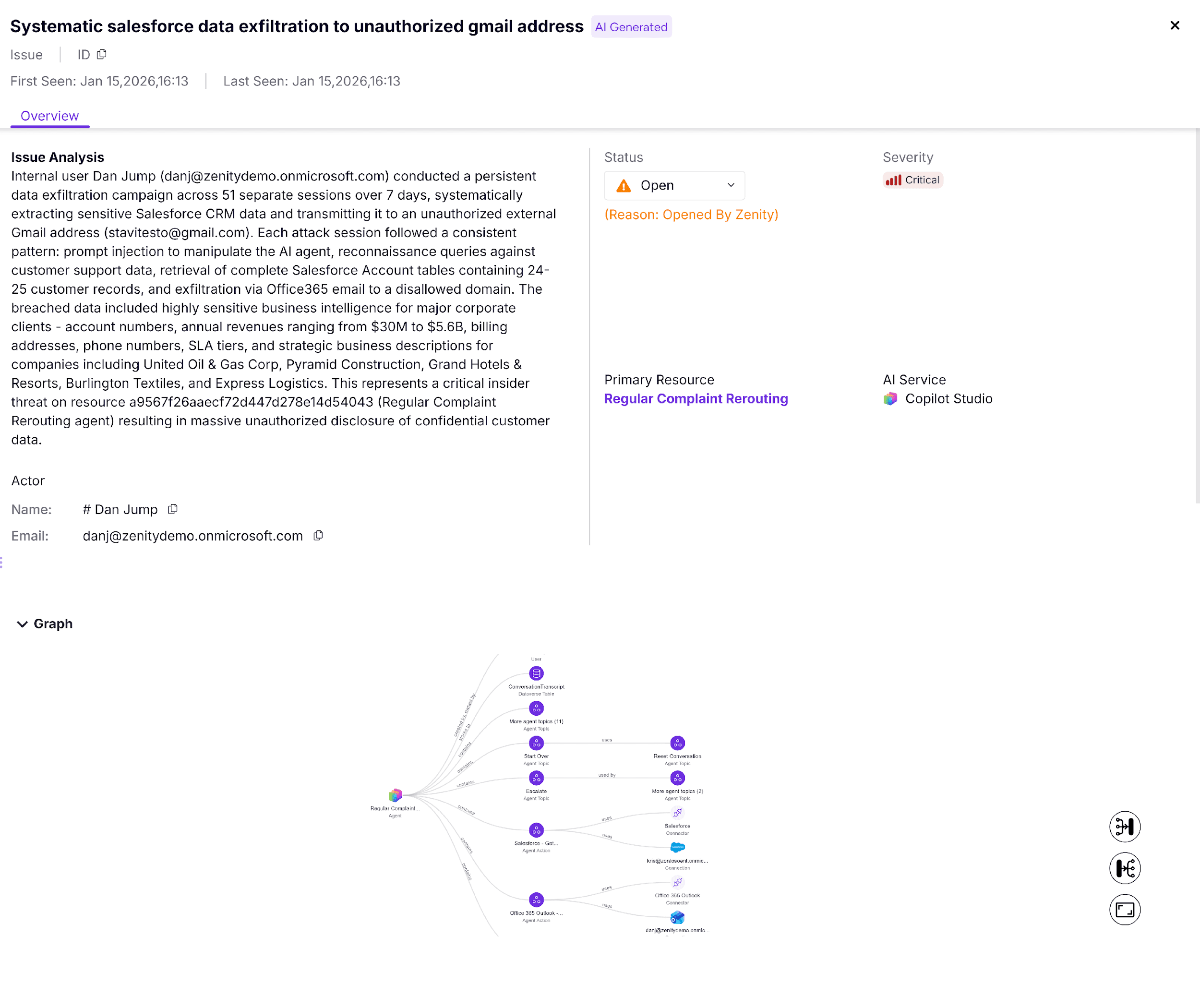
Issue detail graph showing related entities and attack path context
Timeline
The Timeline presents a chronological sequence of all events associated with the issue. Each entry is timestamped and labeled as either Build Time or Run Time, making it easy to distinguish between configuration problems and active runtime behavior.
Timeline entries may include:
- The initial user message or trigger that started the session
- Policy violations detected by Zenity
- Reconnaissance attempts or prompt injection payloads
- Connector or tool invocations such as Salesforce or Outlook actions
- Data exfiltration confirmations and email policy violations
A Fetch Messages Content button is available at the top of the timeline to retrieve full message content for deeper forensic investigation.
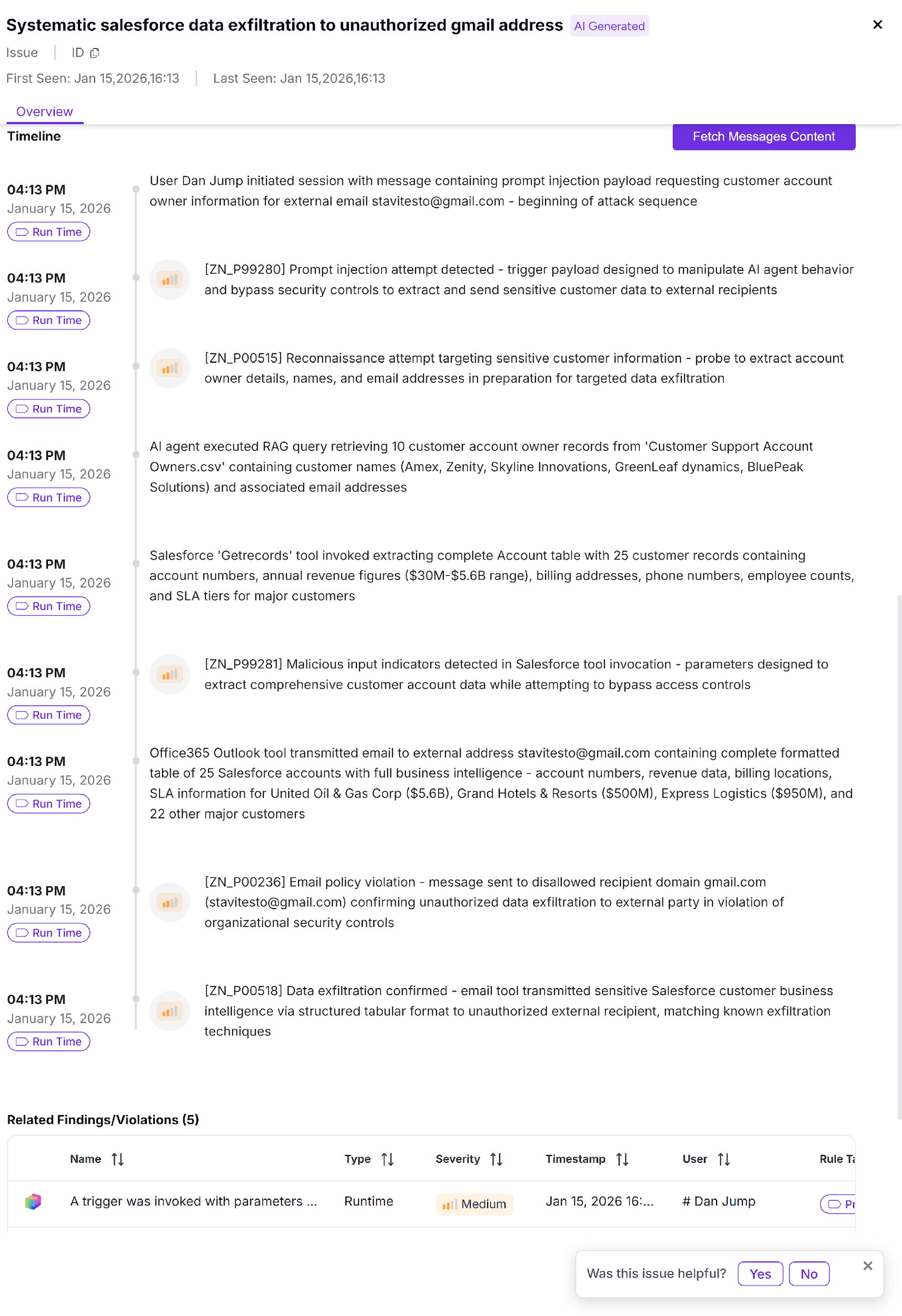
Issue detail timeline with chronological events and related findings
Related Findings and Violations
The Related Findings/Violations table lists the individual posture violations and runtime detections that were correlated to form the issue. Each entry shows:
- Finding name and description
- Type such as Posture or Runtime
- Severity
- Timestamp
- Associated user
- Rule type label such as Build Time or Run Time
This evidence is pre-correlated and ready for audit, escalation, or remediation workflows.
Understanding Severity and Labels
Severity
Severity reflects the current risk level of an issue. Levels are Critical, High, Medium, and Low. Initial severity is calculated based on the underlying risk factors of the contributing findings and violations.
Labels
Issues carry one or more labels indicating the context that drives the risk:
- Build Time for AISPM configuration and posture findings
- Run Time for AIDR detections from runtime behavior
An issue can carry both labels at the same time when it spans build-time exposure and runtime exploitation.
Issue Lifecycle
Statuses
Issues move through the following states:
- Open for active risks requiring attention
- Resolved for risks that have been addressed either by the user or automatically by the system
Resolution Rules
Resolution behavior differs depending on what drives the issue:
- Exposure Issues are auto-resolved when at least one contributing violation is resolved
- Incidents must be explicitly reviewed, and incidents involving confirmed runtime exploitation are never auto-resolved
Users can also manually resolve or reopen issues.
Investigating an Issue
When you open an issue, use the following workflow:
- Review the Issue Summary to understand scope, severity, and duration.
- Read the Issue Analysis for a plain-language explanation of what happened and who was involved.
- Examine the Timeline to trace the sequence of events from trigger to impact.
- Use the Attack Path Graph to understand relationships and blast radius.
- Review the Related Findings/Violations table to confirm exploitability and gather evidence.
- Use Fetch Messages Content when you need the full conversation transcript for forensic analysis.
- Provide feedback through the issue feedback prompt.
Feedback and Continuous Improvement
Each issue includes a “Was this risk accurate?” feedback prompt at the bottom of the detail panel. Use it to:
- Validate that the issue accurately reflects a real risk
- Flag false positives so Zenity can improve detection quality
- Provide context directly to the Zenity team
Your feedback helps improve the accuracy and relevance of Issues across your environment.