Inline Prevention
Overview
Inline Prevention represents Zenity's next evolution in AI security, moving from post-execution detection to real-time threat prevention. By integrating directly into AI platforms and development environments, Zenity intercepts and evaluates every action before execution, blocking threats such as data exfiltration, prompt injections, and improper secrets handling at the moment they occur.
Key Benefits
Real-time attack disruption
Threats are blocked before execution, not after
Zero-trust enforcement
Every tool invocation and action is evaluated
Seamless integration
Native protection embedded directly into AI platforms and IDEs
Developer productivity
Security without friction, maintaining workflow efficiency
Detections and Preventions Capabilities
Inline Prevention provides comprehensive protection across multiple threat categories, ensuring safe and compliant AI operations. The capabilities listed below represent the generic set of detection and prevention capabilities available across Zenity's Inline Prevention platform. Note that specific capabilities may vary by integration.
| Category | Capability | Description |
|---|---|---|
| Advanced Attack Prevention | Prompt Injection Defense | Automatically identifies and blocks attempts to manipulate the AI into bypassing safety filters |
| Jailbreak Prevention | Stops attempts to trick the AI into performing unauthorized actions or ignoring its system instructions | |
| Data Loss Prevention (DLP) & Privacy | Sensitive Data Blocking | Identifies and blocks the leakage of Personally Identifiable Information (PII) such as Social Security numbers and email addresses |
| Financial and Secret Protection | Monitors for the exposure of financial data, including credit card numbers and IBANs, as well as technical secrets like API keys or passwords | |
| Regulatory Compliance | Ensures AI usage remains compliant with data privacy standards by preventing sensitive information from being sent to or returned by the model | |
| Safety & Content Governance | Risk Filtering | Provides real-time detection of toxicity, hate speech, and offensive content |
| Topic Control | Ensures the AI stays focused on business-relevant tasks by blocking off-topic or restricted subjects | |
| Threat Detection | Identifies malicious links, hidden text, and risky image rendering within AI responses | |
| Context-Aware Protection | Multi-Turn Defense | Tracks the entire conversation thread to stop sophisticated attacks occurring over multiple steps rather than single messages |
| User Behavior Tracking | Identifies and blocks persistent bad actors by monitoring suspicious activity patterns across different sessions | |
| Secure AI Agent & Tool Governance | Tool Misuse Prevention | Monitors and controls how AI agents interact with external tools, plugins, and Model Context Protocols (MCPs) |
| Data Exfiltration Defense | Stops compromised agents from transmitting sensitive internal data to unauthorized external domains through integrated tools |
Platform Support
| Platform | Status |
|---|---|
| Microsoft Copilot Studio | Available |
| Azure AI Foundry | Available |
| Cursor AI | Available |
| Claude Code | Coming Soon |
Microsoft Copilot Studio
Zenity collaborates with Microsoft to bring native, in-line protection to Copilot Studio, enabling enterprises to securely build and scale AI agents. With Zenity integrated directly into Copilot Studio, organizations gain real-time in-line attack disruption. Zenity ensures that every tool invocation (MCP servers, CRM systems, email, or business apps) is continuously monitored and enforced against enterprise policies, without interrupting productivity.
Microsoft Copilot Studio-Specific Capabilities
Zenity’s integration with Microsoft Copilot Studio provides targeted protection for tool-based interactions:
| Category | Description |
|---|---|
| Supported Activities |
|
| Detection Capabilities |
|
Important: Zenity for Copilot Studio is specifically designed to monitor and block tool execution. It does not evaluate or restrict regular conversational user messages that do not invoke a tool—only tool calls are inspected and can be blocked based on security policies.
What Data is Shared with Zenity?
When Zenity is integrated, Copilot Studio securely shares the following runtime data with Zenity for evaluation:
- User’s recent prompt and chat history
- Outputs from previously invoked tools
- Conversation metadata (agent ID, user ID, tenant ID, trigger type)
- Tool invocation request, reasoning, and inputs
Zenity analyzes this context to allow or block execution in real time, ensuring security before the action is performed.
Prerequisites
Before integrating Zenity with Copilot Studio, ensure you have:
- Power Platform Administrator role
- Microsoft Entra app registration for authentication with Zenity
- Zenity Webhook endpoint URL:
- EU: https://edge.eu1.zenity.io/cps/webhook
- US: https://edge.us1.zenity.io/cps/webhook
- Windows PowerShell 5.1 or later (if using script-based setup)
Configuration Steps
Step 1: Configure Microsoft Entra Application
Choose one of the following methods to configure the Microsoft Entra application:
Option A: Configure Using PowerShell Script
Download the Microsoft-provided PowerShell script . Use the Zenity endpoint in the “-Endpoint” parameter.
Parameters to provide:
- TenantId: Your Entra tenant ID
- Endpoint: Zenity webhook endpoint (in the prerequisites above)
- DisplayName: e.g., “Copilot Security - Zenity”
- FICName: Federated Identity Credential name
Example:
.\Create-CopilotWebhookApp.ps1 `
-TenantId "11111111-2222-3333-4444-555555555555" `
-Endpoint "https://zenity.example.com/threat-detection/copilot" `
-DisplayName "Copilot Security Integration - Zenity" `
-FICName "ProductionFIC"
For detailed instructions, see Microsoft’s PowerShell script documentation .
Option B: Configure Manually Using Azure Portal
Alternatively, you can manually configure the Entra application through the Azure Portal. This method provides more granular control over the configuration process.
For step-by-step manual configuration instructions, see Microsoft’s manual configuration guide .
Tip: Automating Base64URL Encoding for Entra IDs and Endpoints
To streamline the process of encoding your Microsoft Entra tenant ID and Base URL, you can use the PowerShell script provided below. This script automates the conversion to the required Base64URL format and generates the final path for you.
Click to expand: PowerShell script for Base64URL encoding
1. The Script
Copy the following code and save it locally as create_fic.ps1:
param(
  [Parameter(Mandatory=$true)]
  [string]$endpoint,

  [Parameter(Mandatory=$true)]
  [string]$tenantId
)

function Convert-ToBase64UrlFromBytes {
  param([byte[]]$Bytes)
  [Convert]::ToBase64String($Bytes).TrimEnd('=') -replace '\+','-' -replace '/','_'
}

# Encode tenant ID (as GUID bytes → Base64URL)
try {
    $guid = [Guid]::Parse($tenantId)
    $encodedTenant = Convert-ToBase64UrlFromBytes -Bytes ($guid.ToByteArray())
} catch {
    Write-Error "Invalid Tenant ID format. Please provide a valid GUID."
    return
}

# Encode endpoint (UTF-8 bytes → Base64URL)
$encodedEndpoint = Convert-ToBase64UrlFromBytes -Bytes ([Text.Encoding]::UTF8.GetBytes($endpoint))

# Build the path
$path = "/eid1/c/pub/t/$encodedTenant/a/m1WPnYRZpEaQKq1Cceg--g/$encodedEndpoint"

Write-Output "Generated Path:"
Write-Output $path
2. How to Run the Script
Open your terminal (PowerShell or pwsh) and run the script using the following syntax:
./create_fic.ps1 -endpoint "<Your_Zenity_URL>" -tenantId "<Your_Tenant_ID>"3. Usage Example
If your Tenant ID is 12345678-abcd-1234-abcd-1234567890ab and your Endpoint is the Zenity Production EU URL:
pwsh ./create_fic.ps1 -endpoint "https://edge.eu1.zenity.io/cps/webhook" -tenantId "12345678-abcd-1234-abcd-1234567890ab"Step 2: Authorize the Entra Application within Zenity
Zenity requires authorization of the Microsoft Entra application for secure communication.
Steps:
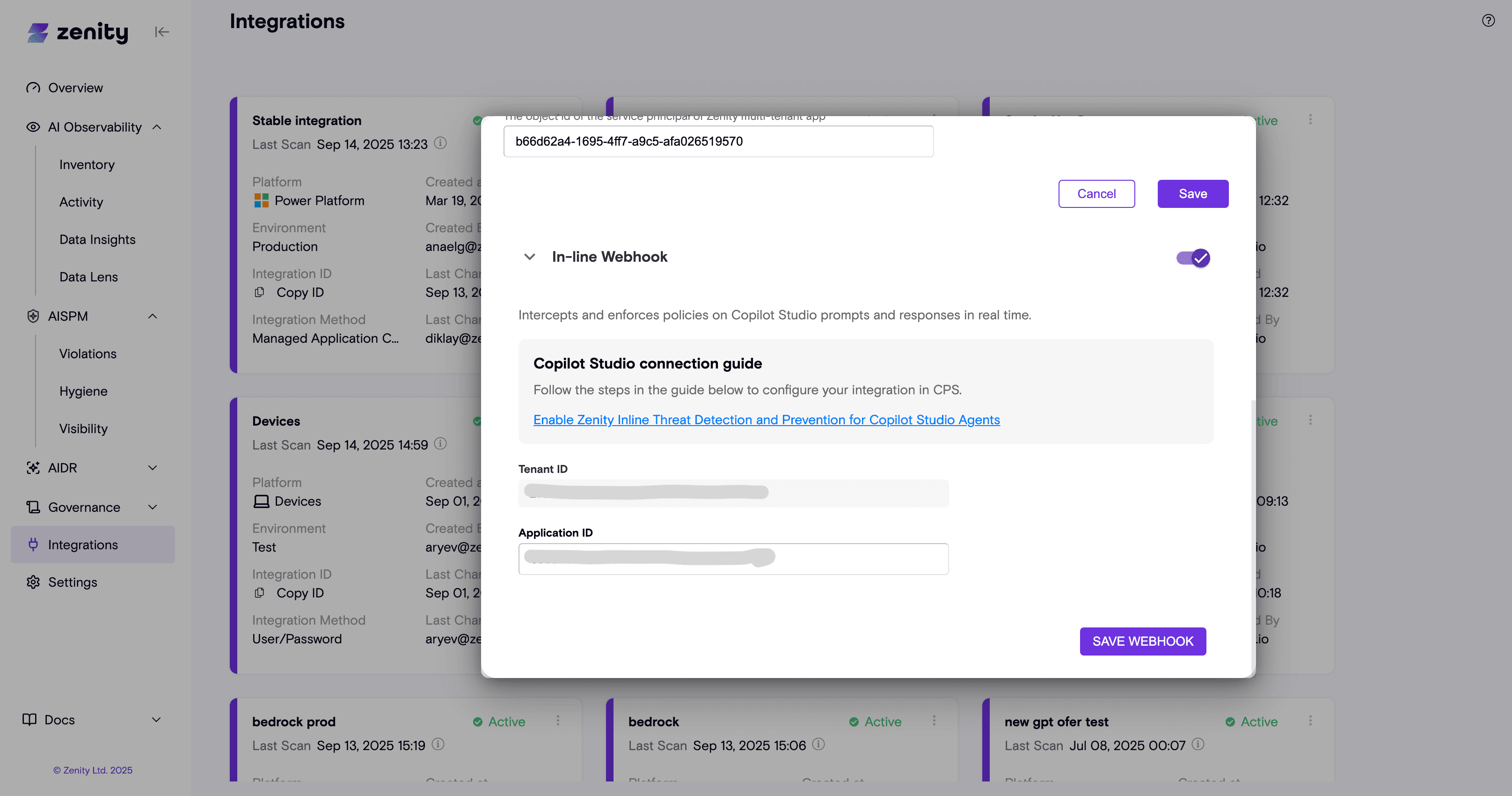
- Within Zenity’s integration page (https://app.zenity.io/app/integrations ), edit your relevant Power Platform integration.
- Enable “In-line Webhook” integration by clicking on the toggle.
- Insert the Azure Entra App ID and Tenant ID, and click “Save Webhook”.
- Zenity verifies and allowlists your application.
- For further information and additional guidance, please see Microsoft’s guide to connecting Copilot Studio with threat detection partners: https://learn.microsoft.com/en-us/microsoft-copilot-studio/external-security-provider
Step 3: Configure Threat Detection in Power Platform Admin Center
- Sign in to Power Platform Admin Center .
- Go to Security > Threat detection.
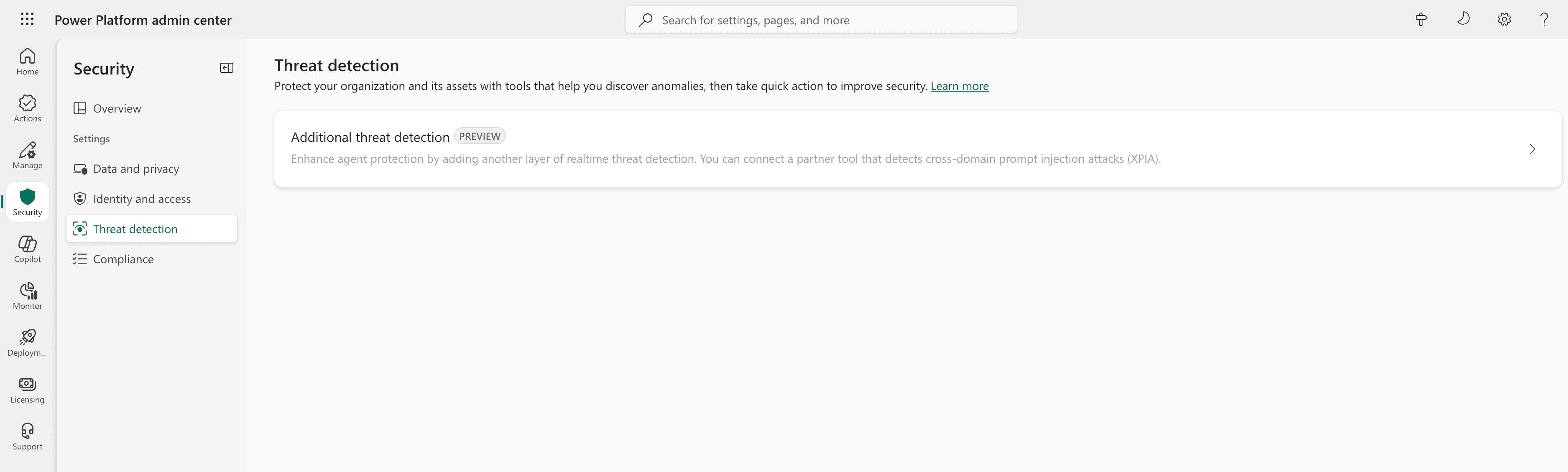
- Select Additional threat detection.
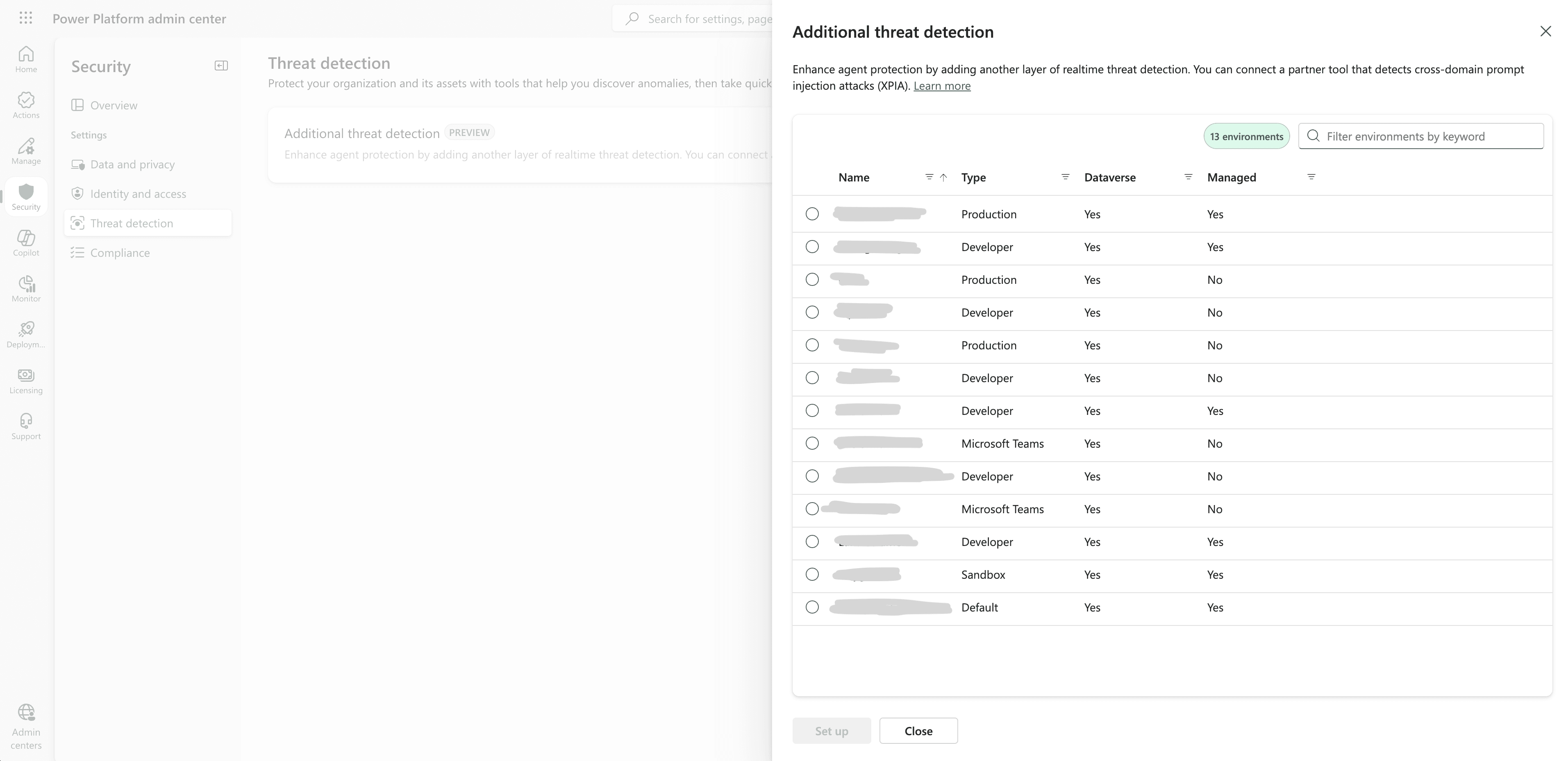
- Choose the environments or environment groups where you want to enable Zenity protection.
- Check “Allow Copilot Studio to share data with a threat detection partner.”
- Enter:
- Azure Entra App ID
- Zenity Webhook Endpoint (in the prerequisites above)
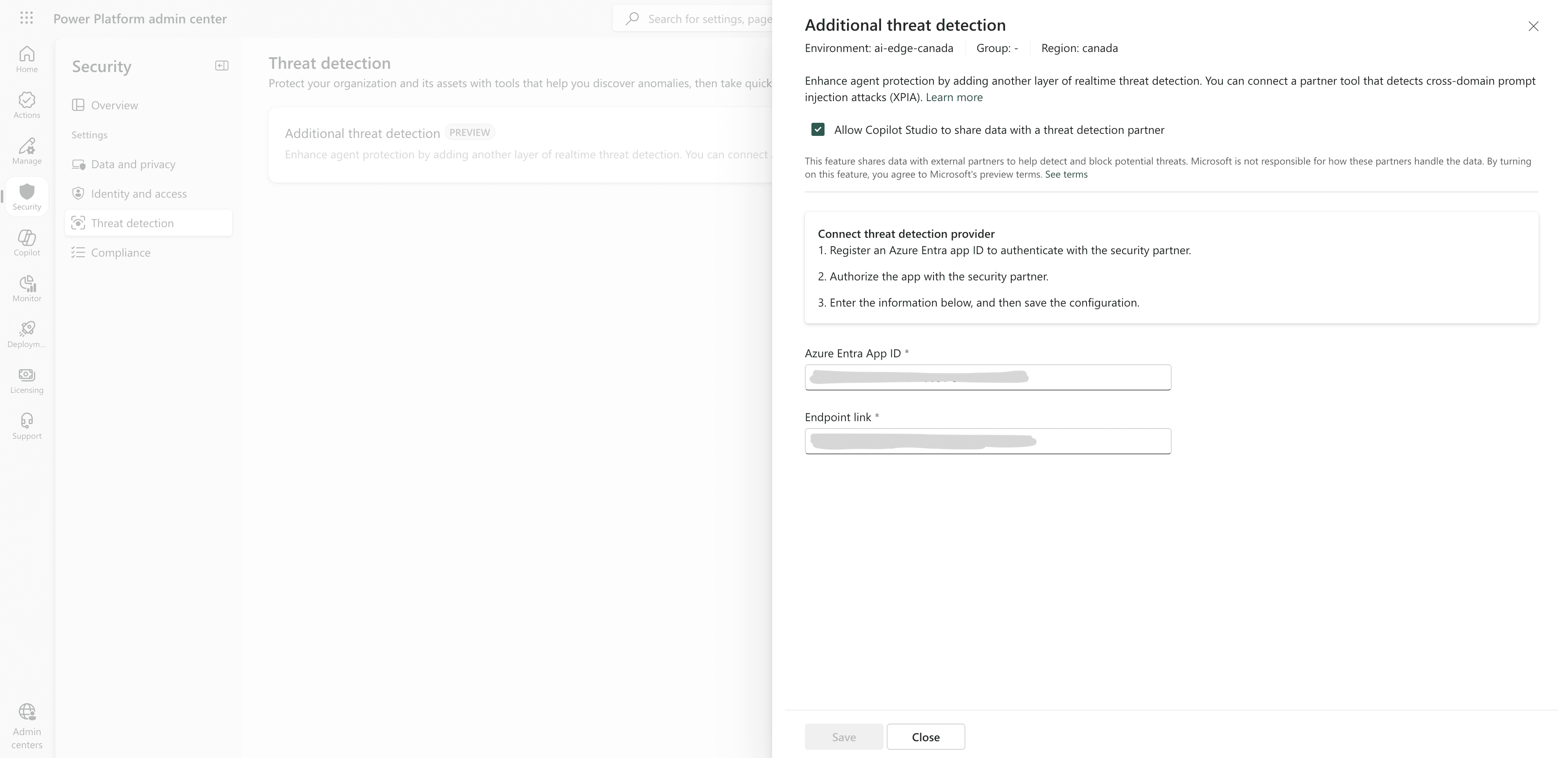
- Save changes.
Azure AI Foundry
Zenity integrates with Azure AI Foundry to deliver native, real-time inline threat detection and prevention for AI workloads. This integration enables organizations to intercept and enforce security policies on AI prompts and responses before they are executed, ensuring comprehensive protection against threats such as data exfiltration, prompt injections, and secrets exposure.
For configuration steps, see the Azure AI Foundry integration guide.
Cursor AI
Zenity integrates with Cursor Enterprise to deliver native, real-time inline threat detection and prevention for AI-assisted development workflows. This integration leverages Cursor’s centralized Cloud Distribution system for Enterprise Hooks, enabling administrators to deploy and manage security scripts from a single dashboard that automatically synchronize to all developer machines.
For configuration steps, see the Zenity Endpoint Agent guide.